
Dear client,
For us to remotely support our clients as quickly and efficiently as possible, we require TeamViewer access to their workstations.
You'll receive a link to join a TeamViewer session which we'll send to you via the support ticket, Whatsapp, email, etc. Once received, please click on the link. Your browser will open and a Pop-up window will appear where you can either 'Launch installed TeamViewer' (Option 1) or 'Download a single-use TeamViewer' (Option 2).
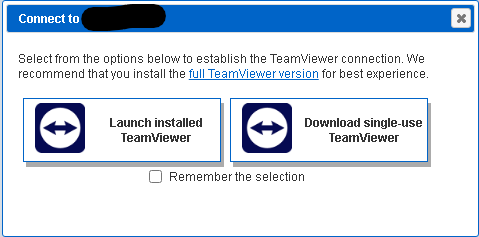
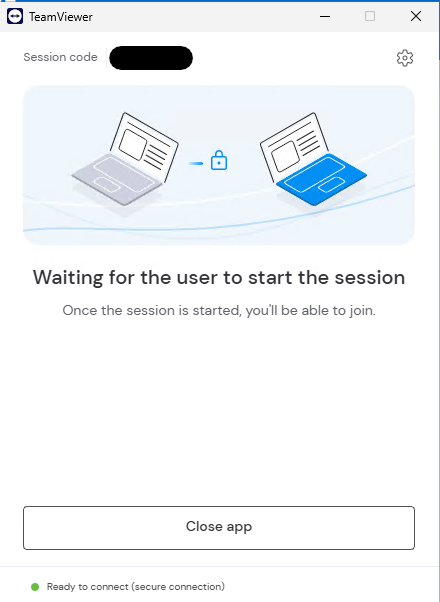
Option 1: When clicking on the 'Launch installed TeamViewer', it will open your TeamViewer where you can then wait for us to start the session.
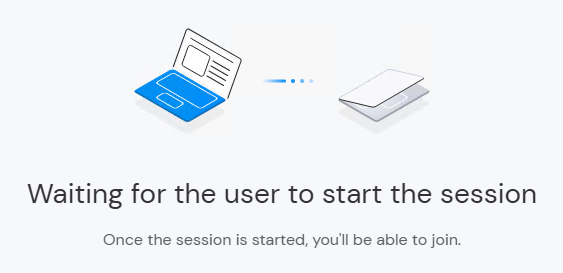
Once we start the session on our side, it will ask you to grant us access to your workstation.
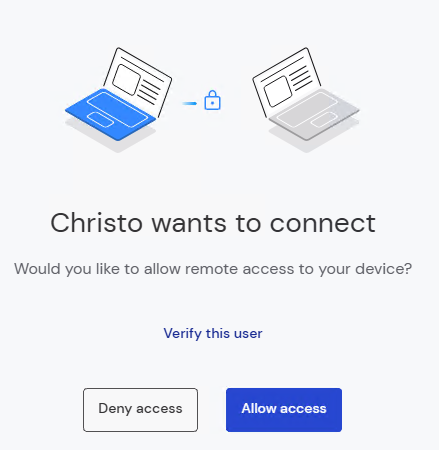
Click on Allow access. We'll now be connected and can assist you with your query.
Option 2: When clicking on the 'Download single-use TeamViewer', it will download TeamViewer. Please run the TeamViewer executable from your Downloads.
Should you get the notification below when running the executable,
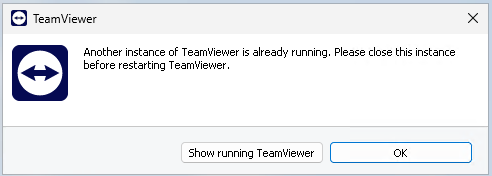
you should click on OK and do the following:
On your Windows taskbar, to the left of the date & time, open up the system tray, right click on the Teamviewer icon and click on Exit TeamViewer.
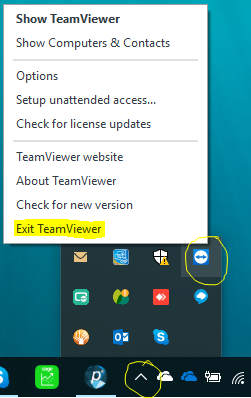
When asked if you're sure you want to exit TeamViewer, click on Exit.
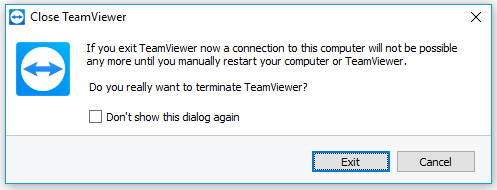
Now rerun the TeamViewer executable from your Downloads. It will open your TeamViewer where you can then wait for us to start the session.
Once we start the session on our side, it will ask you to grant us access to your workstation.
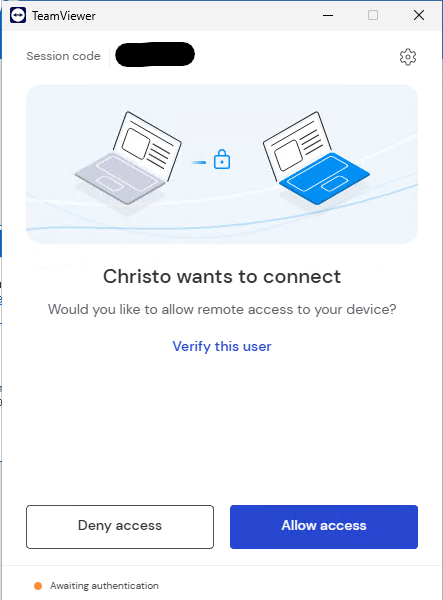
Click on Allow access. We'll now be connected and can assist you with your query.